

Moving a website sounds like a simple technical job: copy the files, copy the database, change the settings. And sometimes it really is that simple. But many business owners have also seen the other side: a site goes live on a new server and suddenly rankings drop, pages show errors, forms stop working, or business emails go missing.
The good news is that almost all of these problems are preventable. A careful migration keeps your rankings, your traffic, and your peace of mind. In this guide, we explain the types of WordPress migration, what can go wrong, and a safe checklist to follow before, during, and after the move.
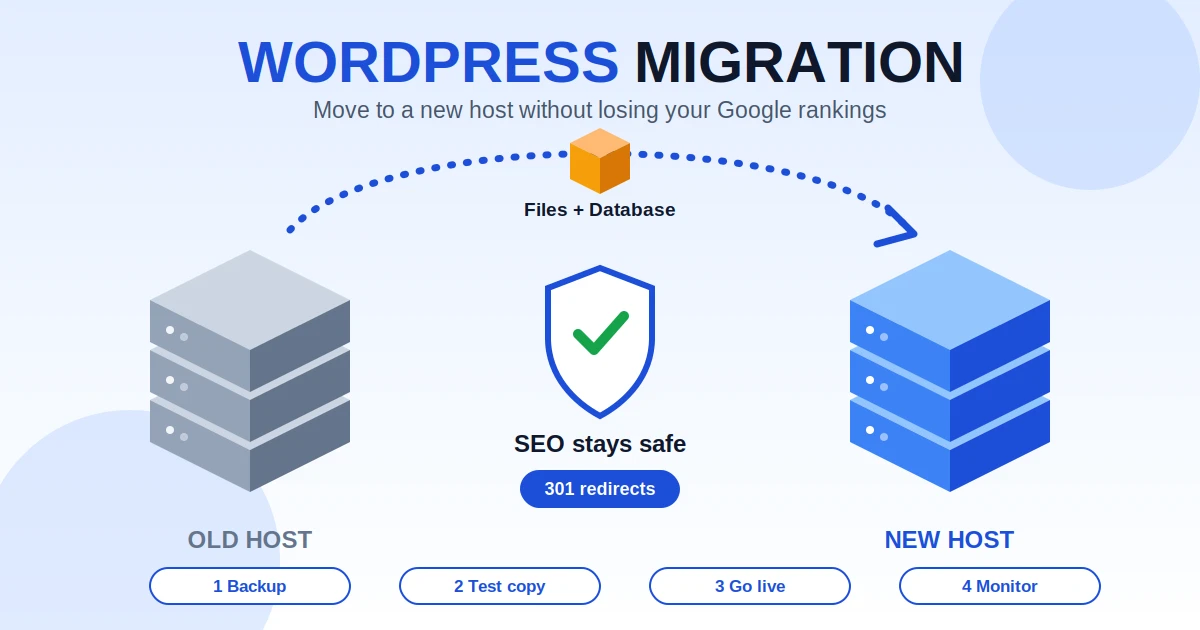
Common reasons include moving to faster or more reliable hosting, changing to a new domain name, switching from HTTP to HTTPS, rebranding, or combining a move with a redesign. Each of these has a different level of SEO risk, so it helps to know which type you are doing.
A simple tip: change as little as possible at the same time. If you only need to change hosts, do only that, and leave the redesign for later.
Knowing the usual problems helps you avoid them:
Back up all your files and your database, and store a copy away from your current server. Do not touch anything else until you have a backup you know you can restore.
You cannot judge the result of a migration without a starting point. Note your current organic traffic, the pages that bring the most visitors, your top keywords and positions, and the number of indexed pages. Export this from Google Search Console and Analytics, so you can compare afterwards.
Crawl your site and create a complete list of its pages, images, and important files. If any addresses will change, this list becomes your redirect map. It is also how you make sure no important page is left behind.
Write down your WordPress version, active theme, plugins and their settings, PHP version, permalink structure, email setup, and any custom code. Also note your current DNS records, including those used for email. Missing one of these is a common reason things break after the move.
A migration is a good moment to fix hosting problems, not repeat them. Look for good speed, security, backups, and real support. Our guide on hosting management explains what a well-managed host should include, and our speed optimization guide shows why server quality matters for rankings and sales.
Set up the site on the new server first, without changing your live domain. Copy your files and database, then update the site address settings as needed. The official WordPress documentation on moving WordPress explains the manual process, including how to handle the database and changing the site URL.
While you test, keep the staging copy hidden from search engines so you do not create duplicate versions of your site. Remember to remove this setting at launch.
Do not just look at the homepage. Check the following on the new server:
If any URL changes, prepare a permanent (301) redirect from each old address to its closest new match. Do not send everything to the homepage, because that confuses both visitors and search engines. Google's guidance on moving a site with URL changes explains the process, and it recommends keeping redirects in place for a long time, at least several months, so that search engines and visitors can find the new pages.
A day or two before the switch, ask your DNS provider or host to lower the TTL (the time your DNS records are cached). This helps the change spread faster when you point your domain to the new server, so visitors see the new site sooner and downtime stays short.
Point your domain to the new server during your quietest hours. Keep the old site running for a while, in case you need to compare or roll back. Do not cancel the old hosting right away.
This is the most common and most damaging mistake. If the staging setting stays on after launch, search engines are told to ignore your site. Check the reading settings in your WordPress dashboard and your robots file straight after going live.
Confirm that your SSL certificate is active and there are no mixed content warnings. Send and receive a test email to make sure your mail records are correct. Then review your security settings on the new server, using our WordPress security guide as a checklist.
Crawl your live site again and compare it with your original URL list. Look for broken pages, redirect chains, missing images, and pages that are blocked. Fix these quickly.
Submit your updated sitemap and check the coverage and errors reports. Google explains the basics in its Search Console guide. If you changed your domain, follow Google's site move steps carefully, including the change of address tool where it applies.
Check your traffic, rankings, and enquiries every few days for the first weeks. Small, short-term movements can be normal while search engines process the change. A large or lasting drop means something needs attention. Our article on how long SEO takes helps you judge what is normal and what is not.
A small brochure site on the same domain can often be moved with a good plugin or your new host's migration tool. But if you have an online store, many pages, a domain change, custom code, or you simply cannot afford downtime, hiring a professional is the safer choice. A good developer also tests, sets up redirects, and monitors the result, which a simple copy tool does not do. If your site relies on custom features, our article on WordPress plugin development explains why custom code needs extra care.
Not if it is done carefully. When only the host changes and the URLs stay the same, search engines barely notice. Risk grows when URLs, the domain, or the design also change, which is why redirects, testing, and monitoring are important.
A small site can be moved in a few hours, while larger sites and online stores may need a few days including testing. Changing the domain or structure takes longer because of redirects and monitoring afterwards.
It can be kept very short or almost zero. Building and testing on the new server first, lowering the DNS cache time, and switching at a quiet hour all help. Keep the old site running until the new one is confirmed working.
Only if your page addresses change. If you keep the same domain and URL structure, redirects are not needed. If any URL changes, each old address should have a permanent redirect to the closest new page.
Confirm that search engines are allowed to see the site, HTTPS works, key pages and forms function, email is working, and redirects are in place. Then submit your sitemap and watch Search Console and your traffic for several weeks.
A WordPress migration does not need to be risky. Back up everything, record your current performance, move only what you need to, test on a staging copy, prepare redirects, and check the basics straight after launch. Then keep watching your results for a few weeks. With this approach, you can enjoy better hosting or a new domain without losing the rankings you worked hard to build.
If you want a stress-free move, the team at Alien Web Solutions can plan and handle your WordPress migration, from backups and redirects to testing and post-launch monitoring. Get in touch and tell us about your website, and we will recommend the safest way to move it.
