Shopify Theme Customization: A Complete 2026 Guide for Brands & Stores
Shopify theme customization is no longer about copying a template and hoping it "looks nice." It's about turning your brand story, audience, and performance goals into a live, high-converting Shopify store—and that's exactly what Alien Web Solutions focuses on for brands worldwide.
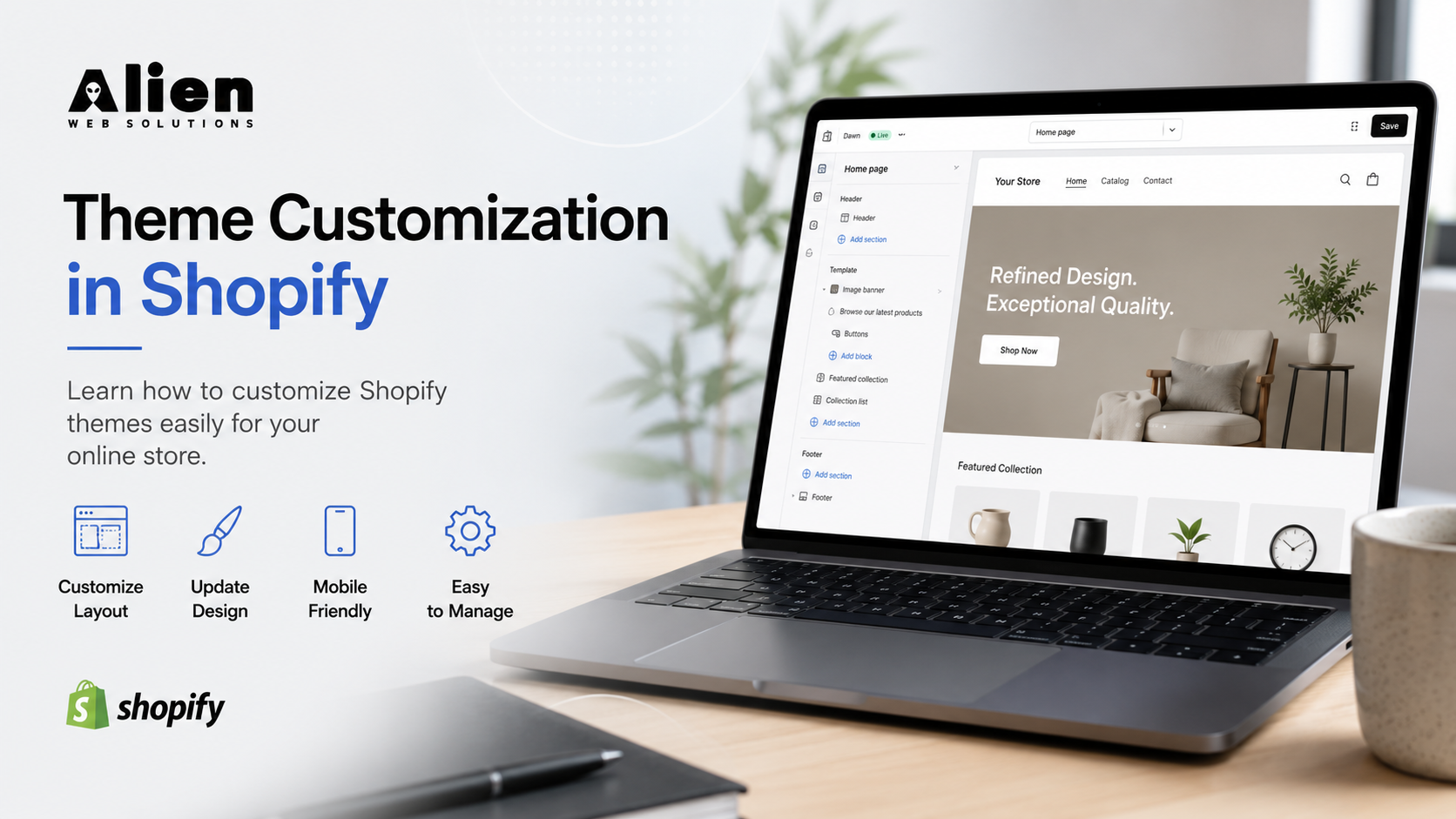
Why Shopify Theme Customization Matters in 2026
If your Shopify store looks like every other drop-ship or template store, you're losing trust, clicks, and conversions before the first scroll.
Shopify theme customization is no longer just "changing colors" or swapping fonts; it's about aligning your store's look, feel, and behavior with your brand, audience, and conversion goals.
In 2026, generic themes rank lower not because of code but because they underperform in three key areas:
- User experience (clunky layouts, slow load-times)
- Brand differentiation (too many stores look the same)
- Conversion-focused structure (weak CTAs, poor section hierarchy)
By investing in Shopify theme customization, you can:
- Boost trust and E-E-A-T signals through a clean, consistent, professional storefront
- Improve engagement and stay-time by tailoring layouts to your product type and audience
- Prepare for future SEO and AI-driven ranking by building a helpful, people-first experience
In this guide, you'll see how to customize a Shopify theme—from using the built-in editor to advanced Liquid and asset edits—plus when to consider hiring a specialist like Alien Web Solutions to handle more complex customizations.
Step 1: Foundation – Before You Start Customizing
Before you start tweaking anything live, treat Shopify like a live product, not a playground.
1.1 Pick (or duplicate) the right theme
Ask yourself:
- Is this a free theme (good for testing, but limited in customization)?
- Or a paid theme that supports sections, flexible layouts, and advanced settings?
Always:
- Duplicate your live theme before editing in the theme editor
- Use the duplicate as your working version, then publish only when testing is done
1.2 Define your brand and performance goals
Write down:
- Brand identity basics: colors, fonts, tone, and any visual guidelines
- Conversion goals: higher add-to-cart rate, more email sign-ups, or fewer page exits
This keeps your how to customize Shopify theme decisions aligned with business outcomes, not just "design coolness."
1.3 Audit speed, mobile, and UX
Before deep customization, check:
- Mobile responsiveness (all major themes are responsive, but some layouts break on smaller screens)
- Page speed (slow themes drop conversion and hurt SEO)
Use tools like Shopify's own speed-test suggestions and Google PageSpeed Insights to set a baseline before customizing.
Step 2: How to Customize a Shopify Theme Using the Editor
Most merchants can make meaningful changes without touching a single line of code.
2.1 Accessing the theme editor
From your Shopify admin:
- Go to Online Store > Themes
- Under your working theme, click Customize
- You'll see a live preview of your store on the right and a sidebar with editable sections and pages
2.2 Basic visual tweaks (no-code)
Global settings:
- Change logo, favicon, and store name
- Update color palette and typography (primary/secondary fonts and sizes)
Homepage layout:
- Rearrange sections (hero banner, featured products, testimonials, etc.)
- Add or remove blocks like countdown timers, "top selling" grids, or newsletter signup forms
Product pages:
- Move or reorder blocks: gallery, price, variants, description, "add to cart," and reviews
- Enable or disable options like "pickup available," cross-sells, or size-guides
2.3 Advanced editor options you may not know
Beyond basic tweaks, many themes offer:
- Theme presets (e.g., "light," "dark," "minimal" looks) that change layout and color at once
- Language editor to change default text like "Add to cart" to "Buy now" or "Sold out" to "Join waitlist"
- SEO-friendly titles and meta descriptions per page (if supported by the theme)
Step 3: Intermediate Customization (Sections, Assets, Templates)
Once you're comfortable with the editor, you can dive into deeper customization using Shopify's modular structure.
3.1 Working with sections and templates
Shopify's Online Store 2.0 themes use sections (reusable blocks) and templates (rules for specific pages). Common templates you can customize:
- product.liquid (product detail page structure)
- collection.liquid (category/collection page layout)
- cart.liquid and page.liquid (cart and static pages)
Within templates, you can:
- Change element order (e.g., move reviews above the fold on product pages)
- Add custom sections (e.g., "brand story" or "sustainability pledge") to specific pages
3.2 Adding and editing custom sections
To create a new section:
- In the Shopify admin, go to Online Store > Themes > Actions > Edit code
- Under Sections, create a new .liquid file (e.g., custom-banner.liquid)
- Add HTML, Liquid logic, and schema settings so merchants can configure it in the theme editor
This kind of customization is ideal if you want unique blocks that Shopify's default theme doesn't offer—like a "comparison table" for tech products or a "bundle builder" for subscription boxes.
3.3 Managing assets and media
Assets include fonts, icons, SVGs, and custom images used throughout your theme. Best practices:
- Optimize images (compress, use WebP where supported) to avoid slowing the store
- Use consistent icon sets (e.g., all Feather-style or Material icons) to keep the UI professional
- Limit custom web fonts; 1–2 fonts (with a few weights) are usually enough
Alien Web Solutions often helps brands standardize these assets so that Shopify theme customization scales cleanly as the store grows.
Step 4: Advanced Customization (Code, Apps, and Logic)
When design tweaks and basic Liquid edits aren't enough, you enter advanced Shopify theme customization territory.
4.1 When to edit Liquid and CSS
Reasons to customize code:
- You need conditional logic (e.g., show a banner only for returning visitors or specific regions)
- You want custom layouts not covered by theme sections (e.g., a multi-column product grid with filters)
- Performance-critical changes (minimizing render-blocking scripts, lazy-loading images)
Key files you'll often touch:
- theme.liquid (overall layout and meta tags)
- styles.css / theme.css (custom styles beyond the theme editor)
- Any .liquid section or template you've created or extended
Always back up the theme before editing code and test on a duplicate theme before pushing to live.
4.2 Integrating apps and custom scripts
Many stores use apps for live-chat, reviews, upsells, pop-ups, and loyalty programs. Each app can inject scripts or CSS into your theme, which can hurt performance if not managed. Good practices:
- Load third-party scripts asynchronously or deferred
- Remove unused app snippets from your theme files
- Audit your theme with Shopify's Theme Check or similar tools
If you're unsure how to customize Shopify theme code safely, outsourcing to a Shopify-focused agency like Alien Web Solutions helps prevent broken layouts or performance drops.
Step 5: SEO, UX, and E-E-A-T Considerations
Modern SEO isn't just keywords; it's about helpful, people-first content and structure.
5.1 Structuring for search and users
With your Shopify theme, you can:
- Ensure consistent heading structure (H1 for product titles, H2/H3 for sections)
- Use clear, descriptive URLs generated from product and page titles
- Keep navigation simple (top-level menus, clear collection structure)
These UX choices help both human visitors and search engines understand your site.
5.2 Mobile-first and performance
In 2026, Google's ranking systems still favor fast, mobile-friendly sites. Within Shopify theme customization, focus on:
- Responsive grids that adapt to phones and tablets
- Image and font optimization (compressed assets, fewer requests)
- Non-blocking JavaScript and streamlined third-party scripts
A poorly optimized theme can cancel out even the best SEO content strategy.
5.3 Building E-E-A-T signals
From a Shopify theme perspective, you boost E-E-A-T by:
- Displaying clear contact information, trust badges, and shipping/return policies prominently
- Using a consistent, professional design that reflects your brand, not a generic template
- Offering helpful, readable content (not just flashy animations or pop-ups)
Customizing your Shopify theme to highlight these elements naturally improves merchants' trust and search engine perception.
Step 6: When to Hire Experts for Shopify Theme Customization
If any of the following apply, serious customization via a professional often makes more sense than DIY:
- You need custom sections or layouts that don't exist in your theme
- You want advanced logic (geo-targeting, dynamic pricing UI, or A/B-like layouts)
- You're uncomfortable editing code or worry about breaking mobile layouts or SEO
Specialized teams like Alien Web Solutions can:
- Audit your current Shopify theme and suggest a customization roadmap
- Build or extend sections and templates to match your brand and growth goals
- Optimize performance and SEO-friendliness while applying your design language
This approach lets you scale your store faster without risking technical debt or poor UX.
FAQ: Common Shopify Theme Customization Questions
How to customize a Shopify theme without coding?
Use the Theme Editor inside Shopify Admin (Online Store > Themes > Customize) to change colors, fonts, section order, and page layouts. Many paid themes also offer pre-built sections and presets so you can tweak banners, grids, and CTAs visually.
Can I change my Shopify theme without losing content?
Yes, if you keep your products, pages, and blog posts inside the Shopify admin. When you swap themes, only the design and layout change; your content can be remapped to the new theme's sections. Still, always duplicate your current theme and test changes before publishing.
Do I need a developer for Shopify theme customization?
Basic edits (colors, fonts, sections) can be done without a developer. For advanced changes—custom Liquid logic, unique layouts, or integrating complex third-party tools—working with a Shopify-savvy developer or agency is recommended.
How long does Shopify theme customization take?
Simple tweaks (branding, section order) can take a few hours. Deeper customizations (new sections, code edits, integrations) can take several days, depending on the theme and complexity. Planning and testing also add time, so it's wise to budget for a full review cycle.
Next Step: Take Your Store to the Next Level
By now, you understand what Shopify theme customization really means in 2026: it's the mix of branding, UX, and performance that makes your store feel unique and trustworthy.
If you want to move beyond basic tweaks and unlock advanced layouts, conversion-focused designs, and SEO-friendly structure, consider a custom Shopify theme customization plan tailored to your specific store.
You can explore related guides such as "How to Pick a Shopify Theme for Conversion" or reach out to a Shopify-focused team like Alien Web Solutions to discuss a tailored customization or audit for your store.