

A polished interface can still be frustrating if someone cannot read the text, find keyboard focus or tap the right button on a phone. Accessible design reduces those barriers. It also tends to make everyday tasks clearer for everyone, whether they are using a touchscreen in bright sunlight, navigating with a keyboard or reading quickly between meetings.
Accessibility is not a finishing filter to apply after the visuals are approved. It is a set of design decisions that work best when considered early: contrast, type size, spacing, interaction states and how information is organized.
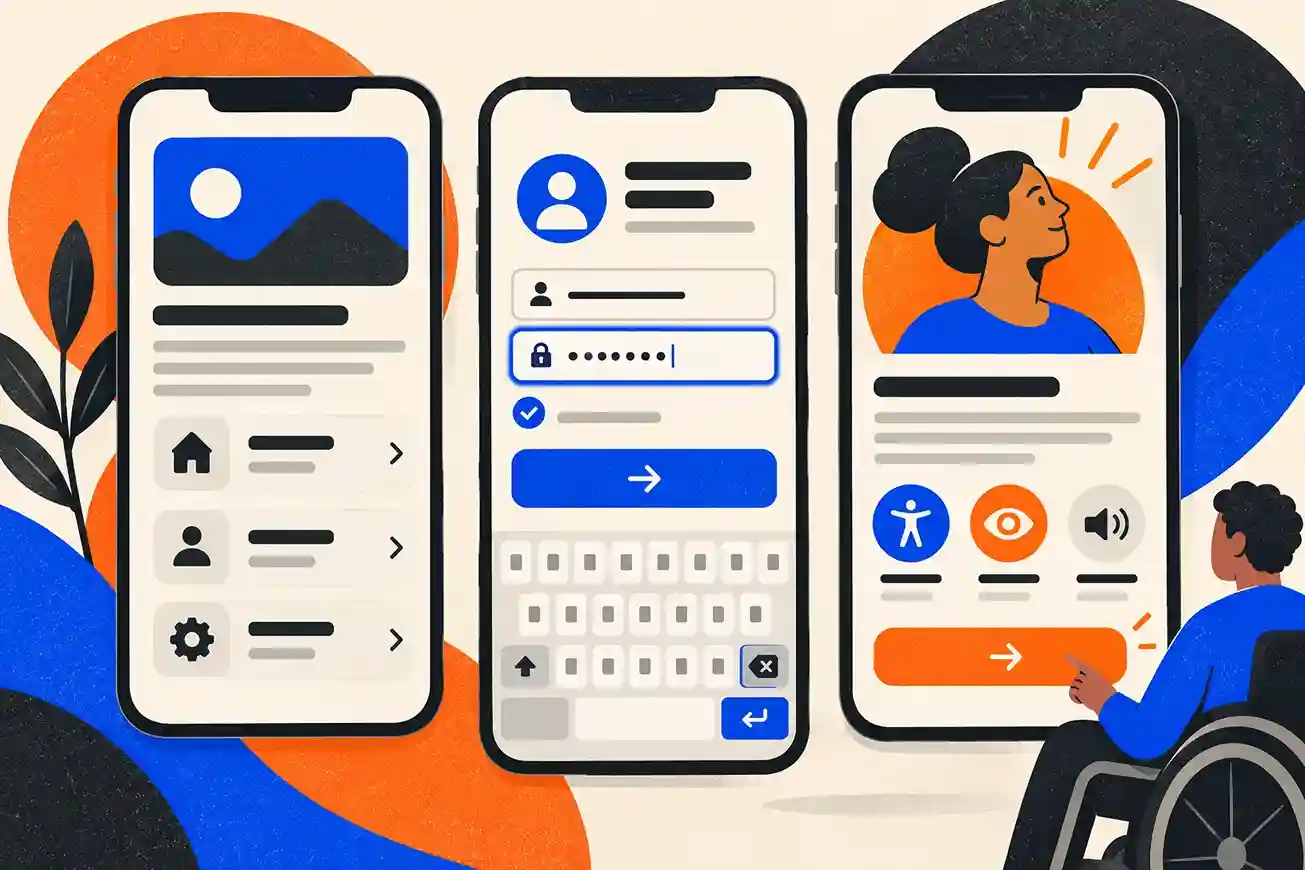
People should be able to scan a screen and understand what matters first. Use headings that describe the content, group related information and make the primary action visually distinct. Avoid using color alone to show an error, selected option or required field; add a text label, icon or other visible cue too.
A consistent hierarchy makes pages easier to learn. Buttons, links and form fields should look and behave predictably across the site. If you are refreshing a store experience, our Shopify website design guide covers mobile layout and trust cues in a commerce setting.
Low-contrast text can disappear against a background, especially on smaller screens or in bright surroundings. WCAG 2.2 Level AA sets a minimum contrast ratio of 4.5:1 for regular text and 3:1 for large text. Check the actual foreground and background colors, including text placed over images or gradients.
Contrast is not the same as choosing loud colors. A restrained palette can remain attractive and readable if the text and background have enough difference in brightness. Test buttons, placeholder text, captions, badges and disabled states rather than checking only body copy.
Practical tip: Keep a small set of approved text-background combinations in your design files so teams do not need to guess each time they create a new graphic or screen.
Small icons and tightly packed links are difficult to activate accurately on a phone. WCAG 2.2 includes a minimum target size of 24 by 24 CSS pixels at Level AA, with exceptions such as sufficient spacing or an equivalent control. For primary actions, larger buttons are often more comfortable even where a smaller target may technically qualify.
Give controls room around them. Check navigation menus, quantity buttons, close icons, pagination, filters and form controls at real mobile sizes. A design that works with a mouse can still feel cramped when operated with a thumb.
Some visitors move through a page using the Tab, Shift+Tab and Enter keys instead of a mouse. A visible focus indicator shows which link or control is active. Do not remove the browser outline unless you replace it with a clear, high-contrast alternative.
Test the whole journey without a mouse: open the menu, move through the page, submit a form and close any dialogs. Focus should follow a logical order and should not become trapped behind an overlay.
Forms are often where people give up. Put labels next to fields, explain the expected format and show errors in plain language. If an entry is wrong, identify the field and tell the user how to fix it rather than displaying only a red border or a generic “invalid input” message.
Keep instructions available while the person is filling out the form. On mobile, use the appropriate input type so the right keyboard appears for email addresses, phone numbers or numeric values. Preserve entered information when an error occurs.
Animation can explain a change or provide feedback, but unnecessary movement can distract or cause discomfort. Keep transitions short, avoid autoplaying motion that competes with reading, and respect the operating system’s reduced-motion preference where possible.
For graphic design, motion should support the message rather than become the message. A subtle transition can clarify that a panel opened; a continuous moving background behind text usually makes the content harder to focus on.
Automated checkers can catch some issues, such as missing labels or low contrast, but they cannot tell you whether a flow makes sense to a real person. Combine automated checks with keyboard testing, zooming, screen-reader spot checks and feedback from people with different access needs.
WCAG 2.2 Level AA specifies at least 4.5:1 for regular text. Large text has a 3:1 minimum. Check the exact colors in the design rather than relying on how they look on one display.
WCAG 2.2 Level AA sets a 24 by 24 CSS pixel minimum target size with defined exceptions. Larger primary buttons and sufficient spacing usually make touch interaction more comfortable.
Yes. Accessibility does not require a plain design. A distinctive palette, expressive typography and strong imagery can work alongside readable contrast, clear hierarchy and usable controls.
No. They can find some technical issues, but keyboard use, screen-reader behavior and real user understanding still need human review.
From the first wireframes and design-system decisions. Early choices about color, component behavior and content structure are easier to maintain than late fixes across many pages.
Accessible UI design is practical design. Clear hierarchy, readable contrast, comfortable controls, visible focus and helpful feedback make interfaces easier to use across devices and abilities.
